
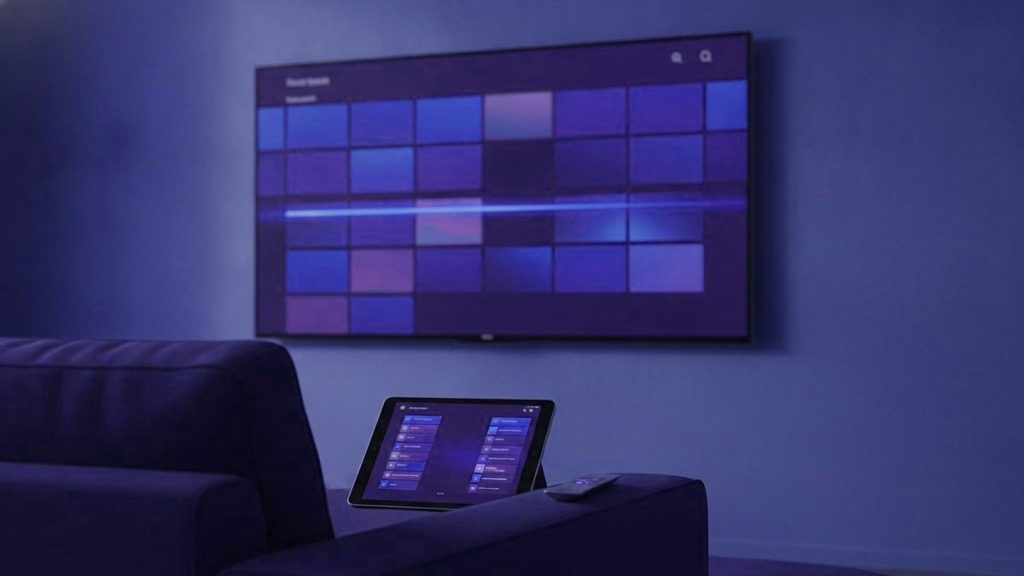
Una app reproductora de IPTV no contiene canales propios. Es un contenedor vacío que tu suscripción llena. Qué app usar depende de tu dispositivo, de la interfaz que prefieras y de cuánto estés dispuesto a pagar por funciones adicionales, porque la mejor app gratuita es suficiente para la mayoría de la gente, y las versiones premium añaden comodidad más que funcionalidad esencial.
Este artículo cubre las principales apps reproductoras de IPTV disponibles en 2026: qué hace bien cada una, cuáles son sus limitaciones, en qué dispositivos funciona y cómo elegir entre ellas. Ninguna requiere una suscripción en particular: cualquier app funciona con el acceso Xtream Codes o el enlace M3U de cualquier proveedor, que es el formato de credencial estándar en el que ha convergido la industria.
Cómo funcionan los reproductores de IPTV
Toda app reproductora de IPTV que instalas empieza como un cascarón vacío. No hace nada hasta que agregas una suscripción. Agregar una suscripción significa ingresar un acceso Xtream Codes (dirección del servidor, usuario, contraseña) o pegar la URL de un enlace M3U. La app se conecta al servidor de tu proveedor, descarga la lista de canales y se llena. No descargas canales: la app se conecta a ellos en tiempo real.
Todo lo que te importa de un reproductor (el diseño de la grilla de canales, la función de búsqueda, las funciones de grabación, la visualización de la EPG, la velocidad del cambio de canales) es la implementación propia del reproductor. Tu proveedor aporta los datos; el reproductor decide cómo se ve y cómo navegas por él. Por eso la misma suscripción puede sentirse muy distinta en diferentes reproductores, y por eso la gente tiene preferencias marcadas.
IPTV Smarters Pro
IPTV Smarters Pro es el reproductor de IPTV más usado. Está disponible en Android, Fire TV, iOS y como reproductor web, lo que le da un alcance que la mayoría de las otras apps no igualan. La interfaz sigue un diseño familiar: categorías de canales a la izquierda, la lista de canales en el centro, un reproductor a la derecha, con la EPG accesible desde dentro del reproductor.
Lo que hace bien: soporte multiproveedor; puedes agregar varias suscripciones distintas y cambiar entre ellas desde la misma app. El diseño es limpio y no intimida a los usuarios primerizos. La versión de iOS es una de las pocas que funciona correctamente en iPhone y iPad sin modificaciones. El reproductor web es útil para ver en una computadora sin instalar software adicional.
Lo que hace menos bien: la versión gratuita muestra publicidad. La interfaz no es tan refinada como la de TiviMate en Android y Fire TV. La velocidad del cambio de canales depende en parte del tiempo de respuesta del servidor del proveedor, pero Smarters no es el reproductor más rápido para cambiar de canal con agilidad.
Ideal para: usuarios primerizos, usuarios de dispositivos iOS, personas que quieren usar una sola app en distintos dispositivos sin aprender diferentes interfaces.
TiviMate
TiviMate es el reproductor de IPTV más pulido disponible en Android y Fire TV. Su interfaz está diseñada para sentirse como una guía de televisión tradicional: una grilla de EPG a pantalla completa, cómoda de ver desde el otro lado de la sala, con un cambio de canales que está entre los más rápidos disponibles. Tiene un nivel premium ($5.99 al año o una compra única de por vida) que añade funciones como soporte de múltiples listas de reproducción, personalización adicional de paneles y seguimiento automático de episodios.
Lo que hace bien: la grilla de la EPG es realmente buena: legible, navegable y razonablemente rápida incluso con una gran cantidad de canales. El manejo de la calidad de imagen, incluida la gestión del buffer y el soporte de códecs, es fuerte. La función de múltiples listas de la versión premium es la implementación más limpia de esa funcionalidad disponible. La app se actualiza con regularidad y ha sido estable durante varios años.
Lo que hace menos bien: solo Android y Fire TV; no hay versión para iOS, ni reproductor web, ni app de Windows. La versión gratuita te limita a una sola lista de reproducción y sin actualización automática de la EPG.
Ideal para: usuarios de dispositivos Android TV, usuarios de Fire TV, cualquiera que vea principalmente en un televisor y quiera la experiencia más parecida a una guía de canales de cable. El nivel premium vale el costo si usas más de una suscripción o consultas la guía con regularidad.
Smart IPTV
Smart IPTV es el reproductor preferido para los smart TV de Samsung y LG. Las tiendas de apps nativas de esos televisores no incluyen reproductores de IPTV de propósito general; Smart IPTV está disponible en los TV Samsung con Tizen y los TV LG con webOS de una forma en que otras apps no lo están, lo que lo convierte en la opción práctica por defecto para quienes quieren ver directamente en un smart TV sin un dispositivo adicional.
Lo que hace bien: compatibilidad con Samsung y LG que otras apps simplemente no tienen. El proceso de configuración es sencillo: instala la app en el TV, anota el ID de dispositivo que muestra la app, ingresa tu enlace M3U o tus credenciales Xtream Codes en el sitio web de Smart IPTV asociado a ese ID de dispositivo, y los canales aparecen en el TV en pocos minutos. Pago único de alrededor de $5.99 por una licencia de por vida en un solo TV.
Lo que hace menos bien: la interfaz es funcional más que elegante. La EPG puede tardar en cargar en televisores más antiguos. El modelo de una licencia por TV significa que varios televisores requieren varias compras.
Ideal para: dueños de smart TV Samsung y LG que quieren ver directamente en el televisor sin un stick o decodificador de streaming conectado.
IBO Player
IBO Player se presenta como una app premium y cobra en consecuencia: alrededor de $3 a $5 al mes o una cuota anual mayor por el nivel premium. La interfaz está diseñada para ser amigable con el consumidor y está disponible en Android, iOS y smart TV. Admite tanto el formato M3U como Xtream Codes e incluye grabación en almacenamiento local donde el dispositivo lo permite.
Lo que hace bien: una interfaz limpia y profesional, accesible para personas a quienes otros reproductores de IPTV les resultaron confusos. La app de iOS en particular es una opción razonable cuando la interfaz de IPTV Smarters Pro se siente cargada. Los controles parentales están más desarrollados que en la mayoría de las apps competidoras.
Lo que hace menos bien: el costo de la suscripción premium, sumado al costo de tu suscripción de IPTV, aumenta el gasto mensual total. El nivel gratuito es lo bastante restringido como para que la mayoría de los usuarios sientan la presión de mejorar. Por el dinero, TiviMate (Android/Fire TV) y Smarters (multiplataforma) ofrecen una funcionalidad esencial comparable o mejor.
Ideal para: hogares con dispositivos mixtos, incluido iOS, donde la disponibilidad multiplataforma de la app y su interfaz más limpia justifican el costo premium.
VLC y Kodi
VLC y Kodi son reproductores multimedia generales más que apps específicas de IPTV, pero ambos manejan listas M3U y, por lo tanto, pueden usarse con cualquier suscripción de IPTV que proporcione un enlace M3U.
VLC es el más simple de los dos: abre la app, abre el enlace M3U desde la opción de transmisión en red y la lista de canales carga. No hay EPG, ni visualización de guía de canales, y cambiar de canal implica navegar por una lista plana. VLC funciona, pero no es cómodo para ver televisión con regularidad.
Kodi requiere más configuración. La app base es un centro multimedia que necesita complementos específicos de IPTV (normalmente el PVR IPTV Simple Client) para funcionar como reproductor de IPTV. Una vez configurado, Kodi ofrece una guía de canales completa y un nivel de personalización que las apps dedicadas de IPTV no igualan. La contrapartida es un proceso de configuración considerablemente más complejo y una experiencia menos estable con algunas suscripciones.
Ni VLC ni Kodi son la opción correcta para la mayoría de los usuarios que quieren algo que funcione rápido y de forma confiable. Son útiles cuando un requisito específico (personalización profunda, un códec particular, un dispositivo donde no hay apps dedicadas de IPTV) los convierte en la opción práctica.
Cómo elegir según el dispositivo
| Dispositivo | Recomendación principal | Alternativa |
|---|---|---|
| Fire TV Stick / Fire TV Cube | TiviMate (premium) o IPTV Smarters Pro | IBO Player |
| Decodificador Android TV (Shield, Formuler, otros) | TiviMate | IPTV Smarters Pro |
| Smart TV Samsung | Smart IPTV | TiviMate (vía un Fire Stick conectado al TV) |
| Smart TV LG | Smart IPTV | TiviMate (vía un Fire Stick o decodificador Android) |
| iPhone o iPad | IPTV Smarters Pro | IBO Player |
| PC con Windows o Mac | IPTV Smarters Pro (reproductor web) | VLC con enlace M3U |
| Roku | IPTV Smarters Pro (versión para Roku) | — |
En qué no necesitas gastar dinero
El nivel gratuito de IPTV Smarters Pro es funcional para un uso básico, incluido el uso en varios dispositivos, sin ningún pago. El nivel gratuito de TiviMate funciona bien con una sola suscripción. El pago único de menos de $6 por dispositivo de Smart IPTV es el único caso donde realmente se requiere un costo para una funcionalidad completa en una plataforma donde no existen alternativas.
No compres una app antes de probar la versión gratuita con tu suscripción y tu dispositivo específicos. Algunas apps manejan ciertas configuraciones de proveedor mejor que otras, y la forma ideal de averiguar cuál funciona mejor para tu configuración es probar ambas durante el nivel gratuito antes de decidir si las funciones premium valen el pago.
La suscripción es donde tu dinero importa. El reproductor es una herramienta gratuita para acceder a ella. Si dos reproductores funcionan correctamente con tu suscripción, elige aquel cuya interfaz prefieras, no aquel por el que pagaste más.
Cómo configurarlo por primera vez
El proceso de configuración de cualquier reproductor de IPTV implica agregar las credenciales de tu suscripción, que vienen en uno de dos formatos: un acceso Xtream Codes (URL del servidor, usuario, contraseña) o un enlace M3U (una sola URL). Ambos formatos otorgan el mismo acceso: son dos maneras de codificar la misma suscripción.
En IPTV Smarters Pro, la opción de Xtream Codes se llama “Add User”. Ingresas la URL del servidor, el usuario y la contraseña de tu confirmación de suscripción, le das un nombre a la lista de reproducción y tocas Add. La app se conecta al servidor, descarga la lista de canales y se llena. El proceso toma unos dos minutos una vez que tienes las credenciales.
En TiviMate, el primer inicio abre un asistente de configuración. Selecciona “Add playlist”, elige la opción de la API de Xtream Codes e ingresa los mismos tres valores. TiviMate ofrece entonces importar la EPG al mismo tiempo, lo que vale la pena hacer durante la configuración para que la guía de programación quede cargada cuando carguen los canales.
En Smart IPTV en un televisor Samsung o LG, el proceso es distinto. La app muestra una dirección MAC del dispositivo cuando se abre. Visitas el sitio web de Smart IPTV desde un teléfono o computadora, ingresas esa dirección MAC y pegas tu enlace M3U. En pocos minutos, los canales aparecen en el televisor. No se ingresan credenciales directamente en el TV.
Si las credenciales son correctas y los canales no cargan, la causa más común es un error de tipeo en la URL del servidor o en el usuario. Copia y pega en lugar de escribir manualmente. La segunda causa más común es que la suscripción aún no se haya activado: la mayoría de los proveedores activan en pocos minutos tras el pago, pero algunos requieren un mensaje al soporte para activar manualmente.
Una vez que los canales carguen, reproduce un canal en vivo para confirmar que la señal funciona, y luego navega a un canal que esperes que esté congestionado: un canal deportivo importante durante un evento activo, o un canal de noticias durante un ciclo de noticias. Si se mantiene sin buffering durante diez minutos, la configuración funciona. Ajusta el intervalo de actualización de la EPG según la recomendación de tu proveedor (normalmente una vez cada 24 horas) y la configuración queda completa.
Preguntas frecuentes
Which IPTV player app should I use?
On Android and Fire TV: TiviMate for the most television-like experience, IPTV Smarters Pro if you want one app across multiple device types. On Samsung or LG smart TV: Smart IPTV. On iPhone or iPad: IPTV Smarters Pro. On any device already in the house: try both Smarters and TiviMate during the free tier before deciding whether the premium features are worth paying for.
Is TiviMate free?
The base version is free and works with a single playlist. The premium tier, at $5.99 per year or a lifetime purchase, adds multiple playlist support, additional interface customisation, and automatic episode tracking. For most users, the free tier is adequate; the premium is worth it if you use more than one IPTV subscription or watch the programme guide regularly.
Does IPTV Smarters Pro work on iPhone?
Yes. IPTV Smarters Pro is available on iOS and is one of the few IPTV players that works properly on iPhone and iPad. TiviMate is Android and Fire TV only, so for iOS devices Smarters is the primary recommendation. IBO Player is the main alternative if you prefer a different interface.
How do I add an IPTV subscription to TiviMate?
Open TiviMate and select Add playlist from the setup wizard or the settings menu. Choose the Xtream Codes API option, then enter the server URL, username, and password from your subscription confirmation. Name the playlist and confirm. TiviMate will connect, download the channel list and offer to import the EPG at the same time. The whole process takes about two minutes.
Can I use VLC for IPTV?
Yes, using your subscription's M3U link. Open VLC, go to Media, Open Network Stream, and paste the M3U URL. The channel list loads. VLC has no EPG and no guide display — you navigate a flat list. It works, but the experience is not designed for regular television viewing the way TiviMate or Smarters are.
Do I need to pay for a player app?
No. The free tier of IPTV Smarters Pro and TiviMate both provide a functional IPTV experience. Smart IPTV on Samsung or LG TVs has a one-time fee of about $5.99 per device, which is the only case where a payment is genuinely required rather than optional. Do not pay for an app before testing the free version with your subscription and device.
Descubre qué puede reemplazar
Dinos qué pagas actualmente y te diremos con claridad qué cubre esto y qué no. Después aprovecha una prueba de 24 horas y compruébalo tú mismo antes de cancelar nada.
Artículos relacionados
IPTV en español vs el cable hispano: el costo real en 2026
Respuesta rápida: En 2026, el cable hispano en EE. UU. suele costar entre $70 y $110 al mes una vez sumados equipos,…
October 15, 2026Cómo ver boxeo y UFC en español en 2026
Respuesta rápida: Para ver boxeo y UFC en español desde EE. UU. en 2026, lo práctico es una IPTV que reúna las…
October 15, 2026Cómo ver canales de México en EE. UU. en 2026
Respuesta rápida: Para ver canales de México desde EE. UU. en 2026, lo más práctico es una IPTV en español que reúna…